Elementor Stuck on Loading: Iframe, URL, Header and Plugin-Conflict Checks
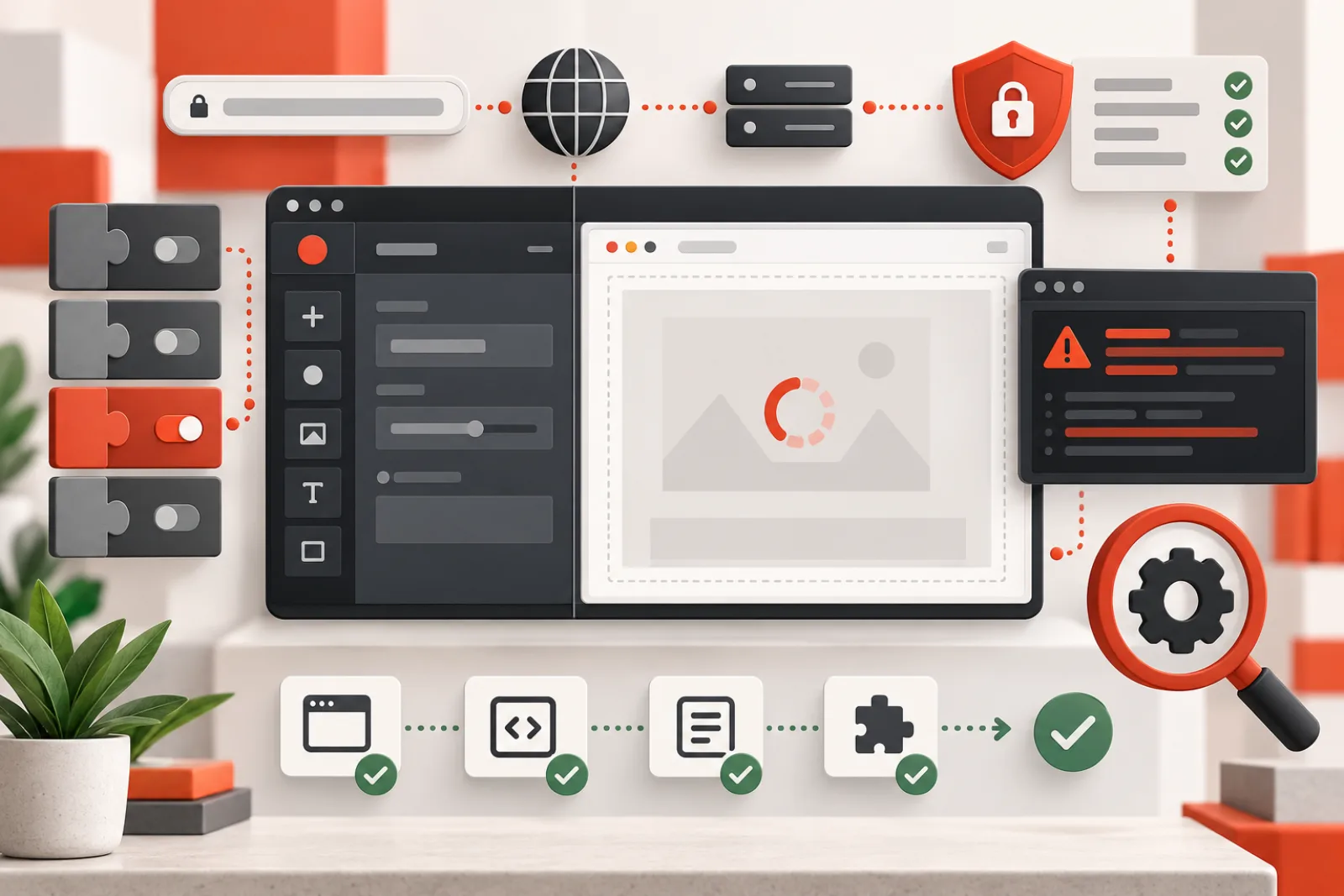
When Elementor is stuck on loading, the editor shell and preview iframe have failed to finish a multi-part handshake. Check the first failed browser request or console error before clearing every cache or reinstalling WordPress. URL mismatch, framing headers, script optimization, expired sessions, plugin code and corrupted document data produce different evidence.
Identify the exact loading failure
Record whether the widget panel loads, the preview is blank/gray, a spinner never ends, or only one page fails. Open developer tools, preserve the Network log and reload once. Capture the first red console error and the first failed or blocked request, including status and initiator. Redact cookies, nonces and private URLs.
| Evidence | Likely cause | First action |
|---|---|---|
| Preview request blocked by frame policy | X-Frame-Options or CSP | Inspect response headers |
| HTTP/HTTPS or hostname mismatch | Site URL, proxy or migration configuration | Compare admin and preview origins |
| 403 on editor request | WAF, security plugin or expired session | Correlate rule/log and reauthenticate |
| 500 response | PHP fatal, memory or plugin/theme conflict | Read PHP log with request time |
| JavaScript undefined/error | Version mismatch, extension, optimization or custom code | Test clean browser and unoptimized editor |
| Only one document fails | Corrupted widget or document data | Use revision/export and isolate component |
Verify the editor and preview share a valid origin
Compare WordPress Address, Site Address, current admin URL and iframe preview URL. Look for old migration domains, mixed HTTP/HTTPS, www mismatch, unexpected ports or reverse-proxy scheme errors. Fix the configuration source; browser security should not be bypassed to accommodate an incorrect origin.
Inspect framing headers
Elementor’s requirements state the editor preview iframe needs framing allowed from the same origin. X-Frame-Options: DENY or Content-Security-Policy: frame-ancestors 'none' can block it; same-origin policies must be configured deliberately. Inspect the actual preview response because a CDN, host or security plugin may add headers after WordPress.
Do not remove framing protection globally. Scope the correction to the required same-origin editor behavior and retest public security headers.
Test a clean browser profile
Use a supported, updated desktop browser and a clean profile or private window with extensions disabled. Privacy tools, password managers, ad blockers and injected corporate security scripts can interfere. If the clean profile works, re-enable extensions individually. A browser-specific result is evidence, not a reason to change server PHP.
Exclude script optimization from authenticated editing
Delay, combine, minify and “rocket loader” features can reorder editor scripts. Elementor specifically documents Cloudflare Rocket Loader as a potential cause. Exclude authenticated editor routes and required scripts using the optimizer’s documented controls, purge the affected cache, and test. Avoid globally disabling frontend optimization unless the evidence requires it.
Use Safe Mode as an isolation test
Elementor Safe Mode loads an isolated editor for the administrator without changing the public site. If the editor loads there, a plugin, theme or experiment is implicated; restore components methodically on staging. If it still fails, inspect memory, server configuration, browser extensions and request failures. Safe Mode does not solve every widget-panel or frontend issue.
Keep Elementor and Pro compatible
Mismatched core and Pro releases can call unavailable code. Record both versions and update through a backed-up staging workflow. If failure began after an update, use documented rollback/recovery rather than editing vendor files. Preserve the failing version combination for the support report.
When only one page is broken
Use a revision or exported template. Duplicate the page on staging, remove the most recent or suspicious widget/container, and retry. Elementor documents corrupted widgets as one cause of blocked editor access. Recreate the component cleanly before reintroducing custom code or dynamic filters. Do not delete the only working published copy.
Worked example
The widget panel loads, but the preview remains gray. Network shows the preview document returning 200; console reports refusal to frame it because a host security template sends X-Frame-Options: DENY. The team changes the authenticated same-origin response to the host’s recommended same-origin policy, retains protection against external framing, and verifies both editor and public headers. Disabling plugins would not have fixed the server header.
Map the editor loading sequence
Treat the editor as several dependent stages: admin shell, configuration data, scripts and styles, preview document, REST or AJAX calls, widget registration and final readiness. Record the first stage that does not complete. Later errors may be consequences of the first blocked resource.
Preserve the browser network log across reload and include initiator and timing. A waterfall is more useful than a screenshot of the spinner.
Check authentication, cookies and nonce lifecycle
Log out and back in once, then reproduce. Inspect whether the editor and preview use the same intended cookie domain, secure scheme and site path. Migrations, domain changes and reverse proxies can leave authentication valid in wp-admin but absent from the preview or API request.
Do not publish cookies or nonces in support tickets. If failures recur after a predictable duration, measure session and security-token expiry instead of clearing browser storage repeatedly.
Inspect every redirect in the preview request
A preview can redirect from HTTP to HTTPS, non-www to www, login, maintenance mode, a language route or a canonical host. Record the complete chain. Cross-origin or authentication-losing redirects can break framing even when the final response is 200.
Fix the URL and proxy source that emits the wrong location. Avoid browser flags that suppress origin protections.
Validate Content Security Policy precisely
Review frame-ancestors, script, style, connect, worker and image sources on the actual editor and preview responses. Report-only policy can reveal violations before enforcement. Nonces and hashes must match the scripts Elementor actually runs; an overly broad wildcard weakens protection.
Scope changes to required trusted origins and retest public pages for clickjacking resistance. A missing console violation does not rule out a proxy-added legacy frame header.
Diagnose REST and AJAX failures
Filter network requests by failed status and inspect the safe response body. A 401 or 403 suggests authentication or policy; 404 may indicate permalink or endpoint routing; 500 requires server logs; a 200 HTML login page where JSON is expected will still break JavaScript parsing.
Test the endpoint from the authenticated browser context. Do not expose it publicly just to make the editor load.
Check script order and duplicate libraries
Optimization, themes and add-ons can defer a dependency, combine incompatible modules or load a second library version. Use the console stack and initiator to identify the exact script. Exclude only authenticated editor resources through supported settings and compare after a real cache purge.
Do not manually edit minified vendor files. If an add-on owns the collision, reproduce with compatible releases and report the smallest failing set.
Distinguish a blank preview from a crashed preview
Open the preview URL directly in a separate tab with the same account. Inspect its response, console and server log. A blank page may be a PHP fatal, empty template, maintenance intercept or CSS visibility issue, while a crashed iframe can leave the outer editor shell responsive.
Preserve the public page and use revisions or staging. Do not delete the document solely because its preview cannot render.
Investigate page-specific corruption safely
Export the document and duplicate it on staging. Compare a previous revision, then isolate recently added widgets, custom HTML, shortcodes, dynamic tags and nested templates. Remove one suspect component at a time and keep the smallest failing copy.
Rebuild corrupted structure through the editor or supported import format. Raw database editing can damage serialized document data and make recovery harder.
Audit memory and worker evidence
If requests return incomplete responses or 500 errors, correlate PHP memory, execution time and process logs. If they remain pending, measure PHP worker queue time. Raising limits cannot repair a JavaScript exception or framing denial, but genuine exhaustion must be addressed at the server layer.
Check concurrent imports, cron and backups that may starve authenticated editor requests. Reproduce outside peak work where possible.
Test service workers, caches and local storage
A stale script or configuration can survive a normal reload. Compare a clean profile, clear only the site’s relevant browser data and unregister unexpected service workers. Record which action changes the result; indiscriminate clearing destroys evidence.
Then fix cache versioning or exclusion so editors do not need repeated manual resets. Confirm a new browser session loads correctly.
Check role and capability differences
Compare an administrator and the affected editor role on the same staging page. A plugin may hide an endpoint, widget or template based on capabilities, producing JavaScript assumptions that fail only for some users. Preserve least privilege while correcting the integration.
Do not solve the problem by making all editors administrators. Test the exact business role and multisite context.
Use a reversible isolation sequence
- Back up the page and record versions.
- Capture first failed request and console error.
- Test clean browser and direct preview.
- Compare a new page and affected page.
- Use Safe Mode, then a staging conflict matrix.
- Correct the proven URL, policy, component or resource issue.
- Verify load, edit, save, preview and public output.
Worked case: a 200 response contains a login page
The editor reports a JSON parse error. Network status is 200, so operators initially blame JavaScript. The response body is actually a login form: a security plugin redirects one REST request after its session timeout and the proxy converts the redirect into HTML.
The team corrects session handling for the authenticated endpoint, retains authorization checks and adds a regression test for expiry. Script optimization was unrelated.
Build a support-ready evidence package
Include Elementor and Pro versions, WordPress and PHP versions, page ID, user role, reproduction steps, timestamp, sanitized console stack, failed request status, response type, framing/CSP headers, Safe Mode result and smallest plugin/theme set. State whether a new page and clean browser work.
Remove secrets and customer content. Precise evidence reduces risky blanket advice and shortens the path to the responsible layer.
Definition of done
The editor reaches ready state in fresh and normal sessions, the affected role can edit and save, preview and public output match, and the original first failure no longer occurs. Security headers still prevent unwanted framing, optimization remains correct for public visitors, and the fix survives cache expiry and a representative page.
Check DNS, TLS and proxy origin behavior
If the preview or API request is pending before any response, compare resolution, certificate name, proxy routing and origin timing. An editor subdomain or migrated hostname may resolve differently on a corporate network. Test from another trusted network without bypassing certificate validation.
Correct DNS and proxy configuration at the source. Browser warnings should never become an accepted editor workflow.
Review maintenance, coming-soon and access gates
Maintenance plugins, password gates and staging authentication can intercept the iframe while wp-admin remains available. Inspect the response body and redirect chain. Configure a documented authenticated preview exception that still protects the staging or private site.
Test an unauthorized visitor afterward. Convenience must not publish private content.
Inspect mixed-content and asset hosts
An HTTPS editor may request HTTP scripts, fonts or preview resources left from migration. Modern browsers can block them. Search the final HTML and network log for the exact insecure URL, then update the owning setting, content or CDN mapping.
Do not add a blanket browser exception. Verify all responsive and generated asset URLs after replacement.
Test local network and security middleware
Corporate proxies, antivirus injection, VPNs and DNS filters can modify headers or block editor endpoints. Compare a clean device or network while preserving the same account. If the failure is network-specific, provide the exact host and policy evidence to its administrator.
Avoid weakening the WordPress site globally to accommodate one injected script.
Check browser console errors in order
Start with the earliest error after reload. A later “undefined” message may follow a blocked configuration request or failed dependency. Expand the stack and initiator, note the script version and reproduce with source maps only where safe.
Fix the first owning condition, reload cleanly and confirm downstream errors disappear instead of patching each symptom.
Audit add-on widget registration
A third-party pack can throw while registering panels, leaving the editor shell incomplete across every page. Compare a new page and Safe Mode, then disable the suspected add-on on staging. Confirm version compatibility and capture the smallest failing widget set.
Remove unused packs when their functionality is duplicated, but do not delete content that depends on them without a migration plan.
Handle recovery mode and fatal errors
WordPress recovery links may allow an administrator to access the site with a paused component after a fatal. Use them to preserve access, read the error and create a staged correction. Do not leave a required plugin silently paused in production.
After repair, exit recovery mode, reactivate deliberately and verify editor plus public output.
Check database and object-cache availability
Editor initialization may depend on options, templates and REST responses that fail during database contention or cache outages. Correlate PHP logs and request timing. A public cached page can remain fast while authenticated editor requests cannot load data.
Restore the dependency and fix the query or cache client. More browser retries can worsen saturation.
Test a new page, template and post type
Create a disposable staging page and compare the affected content type. If pages work but products or templates fail, inspect post-type integrations and permissions. If every document fails, prioritize global scripts, URL, security and capacity.
Remove test content after evidence is recorded; do not experiment on the only production document.
Verify the resolution through cache expiry
Load the editor with a fresh profile, then repeat after browser, page and CDN caches naturally expire. Test the original user role, representative complex page and normal optimization state. A temporary bypass is not a finished fix.
Monitor the first failed endpoint and console signature so recurrence is detectable.
Audit custom login and redirect plugins
Custom login URLs, SSO and role redirects can intercept preview or API calls. Reproduce with the exact authentication path and inspect redirects. Configure exclusions through supported rules while retaining access control and audit logging.
Test login expiry, logout and a user without editor capability to confirm the correction does not expose previews.
Check URL replacement after migration
Search configuration, Elementor documents, generated CSS and database values for the old hostname using serialization-aware tools. Dry-run replacements and back up first. A stale preview base URL can create mixed origins while public links appear correct.
After repair, regenerate only documented assets, clear relevant caches and monitor old-host requests.
Review PHP output corruption
Warnings, notices or stray plugin output can appear before an expected JSON response and cause parsing failure. Inspect the raw response and server error log. Fix the emitting code and keep display of errors disabled on production while retaining secure logs.
Do not suppress every error merely to remove the visible symptom; the underlying code may still break later requests.
Test editor experiments and feature flags
Elementor and add-ons may enable experimental renderers or editor features. Record their state and compare the supported default on staging when the failure began after a change. Avoid toggling several experiments simultaneously because the result cannot identify ownership.
Preserve document compatibility and verify public output before adopting or rolling back a feature.
Maintain a loading regression page
Keep a sanitized page containing core widgets, a dynamic field, template, responsive controls and one approved add-on. After upgrades, test shell, preview, panel, save and public render with the supported roles. The page should be complex enough to exercise integration but safe to export for support.
Update it when the production component model changes.
Check filesystem and generated asset failures
Editor initialization can request generated CSS, icons and configuration files that are missing or unreadable. Inspect exact 404/403 resources, disk capacity, ownership and recent cache regeneration. Correct documented permissions and generate assets through supported tools.
Do not make the whole content directory world-writable or copy files from an untrusted source. Verify fresh generation and public delivery.
Protect production while diagnosing
Export the affected page, preserve revisions and avoid broad plugin deactivation on commerce or membership sites. Use Safe Mode or a staging clone, and reproduce with sanitized data. If a live security rule must be tested, make a narrow, time-bounded change with rollback.
Record every change so the working state can be restored even if the editor remains inaccessible.
Separate workaround from permanent repair
A clean browser, disabled optimizer or Safe Mode may restore access, but each is evidence about a layer rather than the final answer. Identify the responsible extension, exclusion, URL, policy or document component and correct it where owned.
Remove temporary bypasses, return to normal caching and security, then rerun the full editor lifecycle. Document any accepted workaround with owner and expiry.
How Miracuves Editor Optimizer fits
Miracuves Editor Optimizer targets editor-side responsiveness on complex Elementor pages without requiring a page rebuild or intentionally changing the frontend. It may help once the editor can load and measured editor workload is the problem.
It is not a bypass for a blocked iframe, wrong URL, 403, fatal error or corrupt widget. The product’s own usage notes recognize browser, hosting, database and plugin causes. Confirm the failure layer first and verify any optimization against the current installed version.
Resolution checklist
- First failed request and console error are saved.
- Admin and preview URLs use the intended scheme and host.
- Framing policy permits required same-origin preview only.
- A clean supported browser was tested.
- Authenticated editor routes bypass conflicting script optimization.
- Elementor/Pro versions and plugin conflicts were isolated safely.
- A page-specific failure was traced through a revision or staging copy.
- Editor load, save, preview and public page all pass after the fix.
Related WPStack guides
Frequently asked questions
Why does Elementor load in an incognito window?
An extension, stale browser storage or session state may interfere. Test a clean profile, then isolate the responsible factor.
Should I remove CSP or X-Frame-Options?
No. Configure them to allow the required same-origin preview while preserving protection against unwanted external framing.
Does Safe Mode affect visitors?
Elementor says Safe Mode isolates the administrator’s editor session; the published site remains available. Back up first and understand its boundaries.
Why does only one page hang?
That document may contain a corrupt widget, extreme complexity, deleted dynamic dependency or invalid custom code. Use revisions and staging isolation.
Will more PHP memory fix a console JavaScript error?
Not unless the JavaScript failure was caused by an incomplete server response from memory exhaustion. Follow the first concrete error.
References
- Elementor stuck on loading screen
- Elementor system requirements
- Elementor Safe Mode
- Elementor server configuration conflicts

Aditya Bhimrajka is a technology entrepreneur, product strategist, and software solutions expert with over a decade of experience building scalable web and mobile applications. His expertise spans SaaS, AI, cloud technologies, custom software development, and digital transformation. Passionate about solving real-world business challenges through technology, Aditya shares practical insights on WordPress, plugins, software development, startup growth, product strategy, and emerging technologies. At WPStack, he writes actionable, experience-driven content that helps developers, businesses, and website owners build secure, high-performing, and future-ready WordPress solutions.