
How Autoloaded Options Affect WordPress TTFB

A WordPress website can have optimized images, cached pages, and a lightweight theme but still produce a slow server response. In some cases, the hidden cause is data loaded automatically from the wp_options table on every request.
WordPress uses autoloading to retrieve frequently needed settings efficiently. Instead of running a separate database query for every option, it loads a group of options during the WordPress bootstrap process. This works well for small values used across most pages.
The problem begins when plugins and themes autoload large settings arrays, expired data, cached responses, logs, session records, or options that are required only inside one administration screen. WordPress then processes unnecessary data before it can generate the requested page.
This extra work can increase database time, memory consumption, object-cache pressure, and Time to First Byte.
This guide explains how autoloaded options affect WordPress TTFB, how to identify the options creating pressure, and how to reduce unnecessary autoloading without damaging plugin settings or site functionality.
Understand What TTFB Measures
Time to First Byte measures how long a browser waits before receiving the first byte of a server response.
TTFB includes several stages:
- DNS resolution
- Network connection
- TLS negotiation
- Server processing
- WordPress bootstrap
- Database queries
- Plugin and theme execution
- Cache behaviour
- Network travel time back to the visitor
Autoloaded options affect the server-processing portion of TTFB.
Before WordPress can generate HTML, an API response, an administration screen, or an AJAX response, it must load core files, initialize plugins, prepare the active theme, and retrieve configuration data.
If the autoloaded option payload is unnecessarily large, this work happens early in the request. The delay can therefore affect many different URLs rather than one isolated page.
A slow TTFB is not automatically an autoload problem. External API requests, uncached queries, insufficient PHP workers, slow storage, page-builder processing, and hosting limitations can produce similar symptoms.
Autoloaded options should be investigated as part of a controlled performance diagnosis.
How the WordPress Options System Works
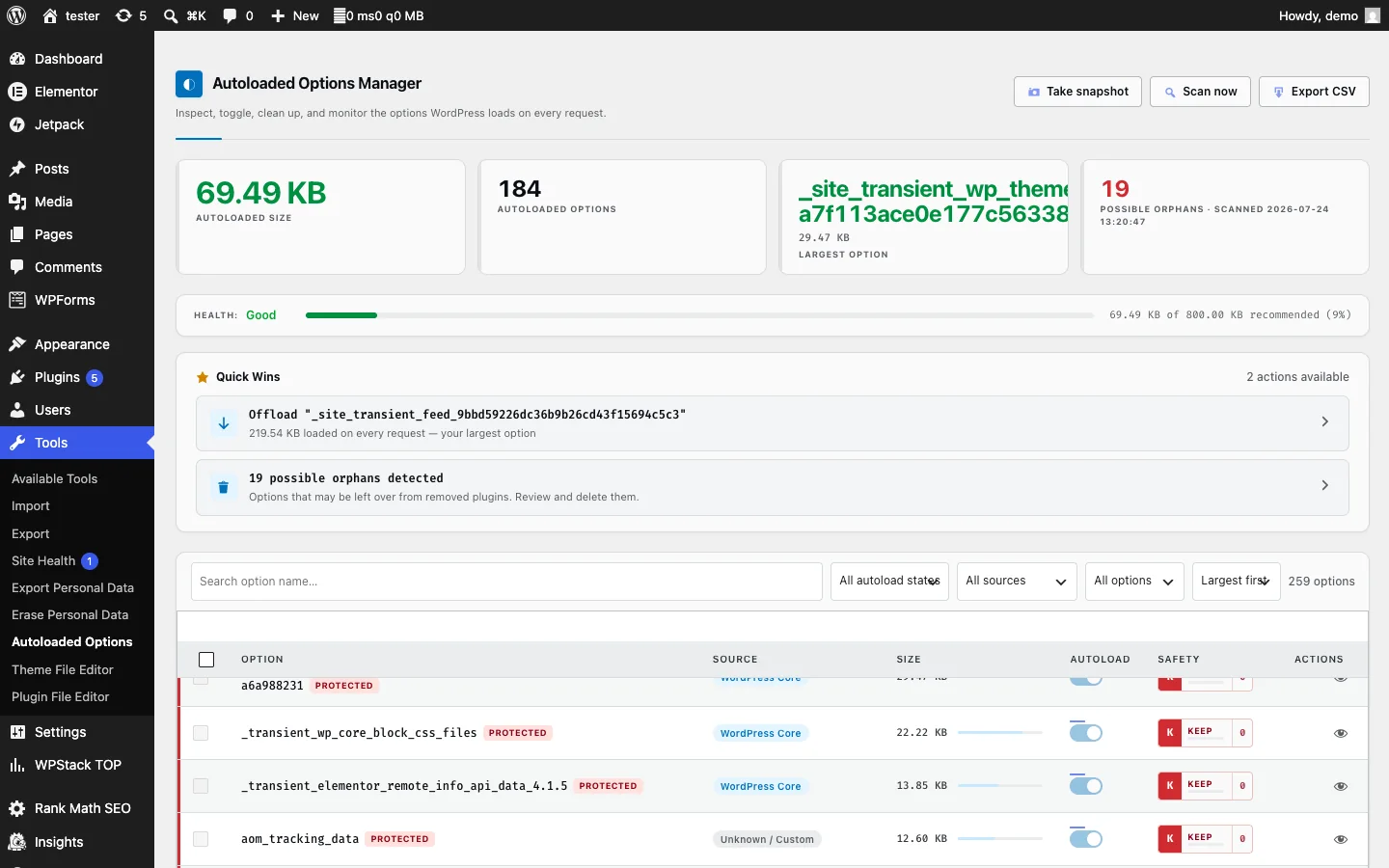
WordPress stores site-wide configuration values in the wp_options table. On Multisite installations, network-level options are stored separately in the wp_sitemeta table.
Common options include:
- Site URL
- Active theme
- Plugin settings
- Widget configuration
- Rewrite rules
- Scheduled task information
- Page-builder settings
- Integration credentials
- Cached plugin data
- Feature flags
The WordPress Options API provides standard functions for adding, reading, updating, and deleting these values.
Every option includes an autoload behaviour. An option marked for autoloading can be loaded during WordPress initialization before the application knows whether the current page will use it.
This avoids multiple small database queries for frequently required values. However, the performance benefit depends on selecting the right data.
Autoloading is appropriate for a small option used across many frontend requests. It is usually inappropriate for a large report, temporary API response, plugin log, or settings array accessed only on one administrative page.
Why WordPress Autoloads Options
Without autoloading, WordPress may need to query the database each time code calls get_option() for a value that is not already cached.
If ten frequently used options are requested separately, the site could perform several additional database operations. Loading those options together can reduce query overhead.
The intended model is simple:
- Frequently used options can be autoloaded.
- Rarely used options should load only when requested.
- Temporary data should have a suitable expiration and cleanup process.
- Large operational datasets should use more appropriate storage.
Autoloading itself is not a WordPress defect. It becomes a problem when plugins and themes treat the options table as unlimited general-purpose storage.
How Autoloaded Options Increase TTFB
Autoloaded options can affect server response time through several related mechanisms.
Larger Database Reads
WordPress must retrieve the autoloaded option set from the database or object cache.
As the total payload grows, the database reads and transfers more data. The impact may be small on a powerful server with a warm cache but more visible on shared hosting, under high concurrency, or after a cache miss.
More Data to Unserialize
Many option values contain serialized PHP arrays or objects.
After retrieving them, WordPress may need to unserialize the values into PHP data structures. Larger and more complex values require additional CPU time and memory.
Higher PHP Memory Consumption
Autoloaded data occupies memory during the request, even if the current page never uses most of it.
One request may remain within the PHP memory limit. Hundreds of concurrent requests loading the same unnecessary payload can still increase total server pressure and reduce the number of requests each worker can handle efficiently.
Increased Object-Cache Pressure
A persistent object cache can reduce repeat database work, but it does not make oversized data free.
Large option payloads consume cache memory and network bandwidth. They may also push more valuable objects out of a limited cache, increasing misses elsewhere.
Longer WordPress Bootstrap Time
Autoloading occurs early in WordPress initialization. Delays at this stage affect the request before page-specific logic begins.
This is why the problem can appear across frontend pages, REST API calls, scheduled tasks, AJAX requests, and administration screens.
Large Autoloaded Options Are Not the Only Problem
Total size matters, but size alone does not explain every performance issue.
A website may have a moderate total payload containing thousands of tiny options. WordPress still needs to process the names, values, and cache entries.
Other warning signs include:
- Thousands of autoloaded records
- Large serialized settings arrays
- Orphaned options from deleted plugins
- Expired temporary data
- Repeated plugin-generated option names
- Logs saved as options
- Session data stored in
wp_options - API responses without expiration
- Duplicate options created by failed migrations
- Options that grow after every request
- Site-specific data autoloaded on Multisite networks
An option may also look unfamiliar without being unnecessary. WordPress core, active plugins, and themes use names that may not be obvious to a site administrator.
Never delete an option only because its name is unclear.
How Much Autoloaded Data Is Too Much?
There is no universal number that guarantees a fast or slow website.
The effect depends on:
- Hosting resources
- Database speed
- Object-cache configuration
- PHP worker count
- Request concurrency
- Number of autoloaded records
- Serialization complexity
- Plugin architecture
- Cache hit rate
- Overall application workload
WordPress Site Health can report when autoloaded data may be excessive. WordPress 6.6 introduced an autoloaded-options check using 800,000 bytes as its default critical threshold.
The official WordPress Core development note on disabling autoload for large options also explains newer autoload behaviour and how WordPress can avoid automatically loading unusually large values.
Treat the threshold as a diagnostic signal rather than a deletion target. A website slightly above it may perform well, while another website below it may still have inefficient options or unrelated TTFB problems.
Identify Whether Autoloading Is Affecting TTFB
Begin with repeatable measurements.
Test several request types:
- Homepage
- Ordinary content page
- Uncached page
- Logged-in administration page
- REST API route
- AJAX request
- Scheduled task
- Page-builder editor
Record:
- TTFB
- Total PHP execution time
- Database query time
- Query count
- Peak memory
- Object-cache hits and misses
- Autoloaded option count
- Total autoloaded option size
Run multiple tests because one request may include a cold cache, background task, network delay, or temporary hosting activity.
If TTFB improves substantially after autoload behaviour is changed in a controlled staging environment, the options payload was contributing to the delay. If the difference is negligible, continue investigating other parts of the request.
Inspect the Largest Autoloaded Options
A database query can help identify the largest autoloaded values, but the accepted autoload values vary across WordPress versions.
Modern WordPress versions may use values such as:
onoffautoauto-onauto-off
Older records may still use:
yesno
Do not assume that only autoload = 'yes' represents autoloaded data on every site.
Use Site Health, a trusted diagnostic tool, WP-CLI, or a carefully reviewed database query appropriate for the installed WordPress version.
For each large option, record:
- Option name
- Approximate size
- Current autoload value
- Owning plugin, theme, or core component
- Whether the owner is still active
- Where the value is read
- How frequently it changes
- Whether it contains temporary data
- Whether a cleanup routine exists
This evidence is necessary before changing anything.
Determine Which Plugin Owns an Option
Option names often include a plugin slug, vendor prefix, or feature name, but naming conventions are inconsistent.
To identify ownership:
- Search the active plugin and theme code for the exact option name.
- Check plugin documentation and database-cleanup instructions.
- Review when the option was created or last changed, if logs are available.
- Compare the name with installed and previously removed plugins.
- Inspect the value structure without modifying it.
- Search migration, activation, deactivation, and uninstall routines.
- Ask the plugin developer when ownership remains unclear.
Do not rely only on a search engine result. Different plugins may use similar names, and custom code may reuse a common prefix.
An orphaned option from a deleted plugin may be removable, but confirm that the plugin will not be reactivated and that no other component depends on the data.
Measure Size and Usage Together
The largest option is not automatically the best optimization target.
Consider two examples:
- A 200 KB option used on every frontend request
- A 70 KB option used only on one monthly report screen
The first may justify autoloading if splitting it creates multiple expensive reads and it is genuinely needed everywhere. The second probably should not autoload because most requests never use it.
Evaluate each option using three questions:
- How large is it?
- How frequently is it required?
- On which request types is it required?
Options used only during activation, imports, exports, analytics, administration, backups, migrations, or scheduled processing are strong candidates for on-demand loading.
Recognize Common Sources of Autoload Bloat
Deleted Plugin Data
Some plugins preserve settings after uninstall so users can reinstall without losing configuration. Over time, inactive products may leave large options behind.
Page Builders
Page builders may store global styles, templates, feature flags, cached assets, editor preferences, or migration state in options.
If the editor is slow as well as frontend TTFB, review WPStack’s guide on how to speed up the Elementor editor. Autoloading may contribute, but editor performance can also depend on document size, active extensions, browser memory, and AJAX workloads.
Security and Activity Logs
Security plugins can create growing configuration, lockout, scan, or activity records. Logs should normally use controlled tables or files with retention limits rather than one continuously expanding autoloaded option.
Before changing security-related data, use the WordPress plugin security review checklist to verify that the option is not supporting authentication, access controls, integrity checks, or audit requirements.
Transients and Cached Responses
Transients are temporary by design, but expired or poorly managed values may remain in the options table. Some plugins also create custom cache options without a reliable expiration process.
Backup and Migration Plugins
Large migration state, job history, archive lists, and remote storage metadata may be stored in options.
Media Management Plugins
Media tools may save scan indexes, attachment references, generated-file maps, and cleanup state. Data that appears unrelated to active content may still help identify derived files or external references.
Review why unused WordPress media is hard to detect before removing options created by media-management tools.
Custom Plugins
Custom code frequently calls add_option() without making a deliberate autoload decision. This can create options that load everywhere even when they support one narrow workflow.
Do Not Delete Options Directly on Production
Deleting an option can have consequences beyond losing a setting.
A plugin may:
- Recreate the option with incorrect defaults
- Lose API credentials
- Repeat an onboarding process
- Trigger a migration
- Rebuild a large cache
- Remove user permissions
- Change checkout behaviour
- Break scheduled jobs
- Duplicate external records
- Lose licence or update information
Always investigate and test changes on staging first.
Create a current database backup and confirm that it can be restored. Record the original option name, value, and autoload state before modification.
If the goal is to reduce automatic loading, changing the autoload state may be safer than deleting the data. The option remains available when its owner calls get_option(), but it is not included automatically in every request.
Follow WPStack’s process for reducing WordPress autoloaded options safely before making bulk changes.
Change Autoload Behaviour Carefully
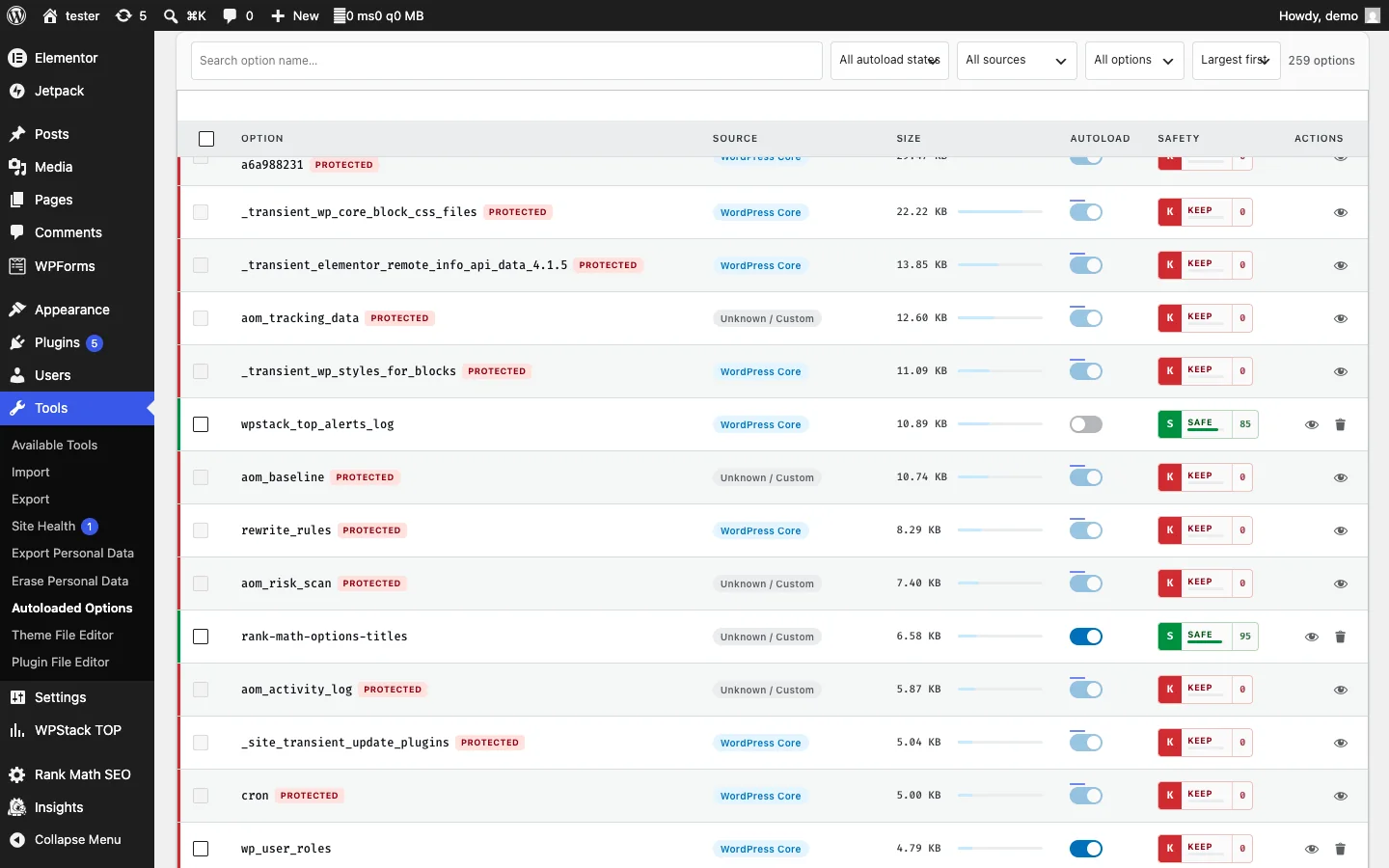
Developers should set autoload behaviour intentionally when creating options.
Conceptually:
- Use
truefor small values required across most requests. - Use
falsefor values required only in specific workflows. - Use the default behaviour when WordPress should apply its current heuristics.
For an existing option, changing autoload behaviour requires care. The current update_option() behaviour may update the autoload value only when the stored value also changes. WordPress provides dedicated functions in newer versions for changing autoload settings, so implementation should match the site’s WordPress version.
Avoid direct database edits when a supported WordPress API can perform the change correctly and invalidate related caches.
After any update:
- Clear the relevant object cache
- Test logged-in and logged-out requests
- Open the plugin’s settings screens
- Run scheduled processes
- Test integrations
- Confirm error logs remain clean
- Compare TTFB and memory usage
Do not make dozens of changes at once. Small batches make failures easier to trace and reverse.
Split Options That Contain Unrelated Data
Some plugins store every setting, cache entry, status value, and log in one serialized option.
This reduces the number of database records, but it can create a large payload that is loaded and rewritten even when only one field changes.
A better design may separate:
- Frequently used runtime settings
- Administration-only settings
- Temporary caches
- Logs
- Integration state
- Large lookup data
- Migration history
- User-specific preferences
Keep the small runtime configuration autoloaded if it is needed broadly. Load large or rarely used groups only when their workflow runs.
Do not split a live serialized option manually in the database. The plugin code, migration logic, rollback plan, and tests must support the new structure.
Move Operational Data Out of the Options Table
The options table is intended for configuration, not unlimited event or business data.
Consider a custom database table when the plugin needs:
- Searchable records
- Log retention
- Pagination
- Filtering
- Sorting
- Status transitions
- Large datasets
- Frequent row updates
- Date-range queries
- Relationships between records
Use post metadata or user metadata when the data naturally belongs to a post or user.
Use transients for temporary cached values when their expiration behaviour is appropriate. For large external API results, consider a purpose-built cache or background-processing design.
A production-ready WordPress plugin should choose storage based on access patterns, growth, query needs, cleanup behaviour, and failure recovery—not simply on which API is easiest to call.
Understand the Role of Persistent Object Caching
A persistent object cache can reduce database reads by keeping options in memory across requests.
This may improve TTFB, especially on websites with repeated traffic and expensive database access. However, it does not fix poor storage architecture.
Oversized autoloaded options can still:
- Consume cache capacity
- Increase cache network transfer
- Create expensive cold-cache requests
- Cause eviction of useful objects
- Increase PHP memory use
- Require unserialization
- Amplify cache-invalidation costs
Object caching should complement an efficient option strategy rather than hide unnecessary autoloading.
Test both warm-cache and cold-cache behaviour. A website may appear fast during ordinary cached requests but slow significantly after cache restarts or deployments.
Autoloading and Full-Page Caching Are Different
Full-page caching can serve generated HTML without booting WordPress for many anonymous requests. This may hide an autoloading problem on cached frontend pages.
The same issue may remain visible for:
- Logged-in users
- WooCommerce carts
- Checkout
- Account pages
- Search
- REST API requests
- AJAX actions
- Webhooks
- WP-Cron
- Administration screens
- Cache misses
Do not conclude that autoloaded options are harmless because the cached homepage loads quickly.
Test uncached and dynamic workflows separately.
Consider Plugin Quality Before Installation
Autoload growth often begins as a product-selection issue.
Before installing a plugin, check whether it:
- Stores logs in options
- Creates large autoloaded arrays
- Cleans temporary data
- Removes or preserves settings on uninstall
- Supports object caching
- Uses custom tables for operational records
- Documents data retention
- Loads code only where required
- Has a credible maintenance history
A free plugin may be appropriate when its architecture and maintenance model match the website’s needs. A custom build may be justified when performance, storage behaviour, integrations, or long-term control are business-critical.
Use WPStack’s comparison of a free WordPress plugin versus custom development when evaluating that decision.
Create a Repeatable Autoload Audit
Autoload optimization should not be a one-time emergency.
Run an audit:
- Before and after major plugin installations
- After migrations
- After large imports
- Before high-traffic campaigns
- During performance reviews
- After removing a plugin
- When Site Health reports a warning
- When TTFB increases without an obvious cause
Record:
- Total autoloaded size
- Total autoloaded count
- Largest options
- Option owners
- Changes since the previous audit
- TTFB
- Peak memory
- Database time
- Object-cache status
Historical comparisons make gradual growth easier to detect.
Validation Checklist
Measure TTFB across several request types. Record database time and memory use. Check Site Health. Calculate autoloaded option size and count. Identify the largest records. Confirm ownership in plugin, theme, or core code. Evaluate size and usage together. Back up the database. Test changes on staging. Prefer supported WordPress APIs. Change options in small batches. Clear related caches. Test plugin workflows and scheduled jobs. Compare performance before and after. Document every production change. Repeat the audit after major plugin or migration activity.
Improve WordPress TTFB Without Breaking Plugin Data
Contact WPStack for a controlled WordPress autoloaded-options and TTFB audit. We can identify oversized or unnecessary autoloaded data, trace each option to its owner, test safer storage or autoload changes on staging, and validate the result across frontend, admin, REST API, AJAX, and scheduled requests.
Our WordPress performance and plugin engineering services help businesses improve server response time without blindly deleting configuration, credentials, migration state, or operational data.
The goal is not to make the wp_options table as small as possible. It is to load only the data each WordPress request genuinely needs.
Frequently Asked Questions
Autoloaded options are configuration values that WordPress loads together during initialization. They are intended for data used frequently across many requests.
Yes. A large or inefficient autoloaded payload can increase database work, unserialization time, PHP memory use, object-cache pressure, and WordPress bootstrap time. However, TTFB can also be affected by hosting, plugins, external APIs, and uncached queries.
No. WordPress uses 800 KB as a default Site Health warning threshold, but the real impact depends on the environment, option count, cache configuration, traffic, and how the data is used.
Not without verification. The settings may be needed if the plugin is reactivated, and another component may rely on them. Confirm ownership, take a backup, and test removal on staging.
It can reduce database reads, but large values still use cache capacity, network bandwidth, and PHP memory. It does not correct unnecessary autoloading or unsuitable storage.
No. Size is only one factor. A large option required across most requests may still benefit from autoloading, although its structure should be reviewed. Usage frequency and request scope matter.

Aditya Bhimrajka is a technology entrepreneur, product strategist, and software solutions expert with over a decade of experience building scalable web and mobile applications. His expertise spans SaaS, AI, cloud technologies, custom software development, and digital transformation. Passionate about solving real-world business challenges through technology, Aditya shares practical insights on WordPress, plugins, software development, startup growth, product strategy, and emerging technologies. At WPStack, he writes actionable, experience-driven content that helps developers, businesses, and website owners build secure, high-performing, and future-ready WordPress solutions.
WordPress Plugin Maintenance Checklist | WPStack
July 29, 2026 at 9:26 am
“ […] how autoloaded options affect WordPress TTFB if plugin data increases server response time, memory use, or object-cache […] “
Why Unused WordPress Media Is Hard to Detect | WPStack
July 29, 2026 at 11:00 am
“ […] a media or optimization plugin increases server response time, review how autoloaded options affect WordPress TTFB. The problem may be the scanner’s stored index rather than the number of attachment […] “
How to Write a Custom WordPress Plugin Brief | WPStack
August 3, 2026 at 9:01 am
“ […] configuration values should not automatically load on every WordPress request. WPStack’s guide to how autoloaded options affect WordPress TTFB explains why option size, access patterns, and autoload behaviour should be considered during […] “