
Why Finding Unused WordPress Media Is Harder Than It Looks

A WordPress Media Library can contain thousands of images, PDFs, videos, icons, and generated thumbnails. Many may appear unattached, duplicated, outdated, or unnecessary. Deleting them looks like an easy way to reduce storage and simplify website management.
The problem is that WordPress does not maintain one complete list showing everywhere a media file is used.
An image may appear in post content, a featured-image field, page-builder data, theme settings, custom fields, reusable blocks, CSS, product galleries, email templates, external applications, or cached HTML. Some references use an attachment ID, while others store only a file URL or filename.
The Media Library’s “Unattached” filter cannot detect all these relationships. A file classified as unattached may still be visible on an important page, while a technically attached file may no longer be used anywhere.
Reliable media cleanup therefore requires reference discovery, risk classification, staged deletion, and visual validation—not a single database query.
This guide explains why unused WordPress media is difficult to identify and how to remove files without breaking live pages, designs, products, or integrations.
Understand What WordPress Calls an Attachment
When a file is uploaded through WordPress, the platform normally creates an attachment post in the database.
That attachment may contain:
- Attachment ID
- File URL
- File path
- Title
- Caption
- Alternative text
- Description
- MIME type
- Upload date
- Parent post
- Image dimensions
- Generated image-size metadata
- Additional plugin metadata
The original file is stored in the uploads directory. For an image, WordPress may also generate several resized versions.
Themes and plugins can create additional sizes for:
- Thumbnails
- Product cards
- Hero banners
- Mobile layouts
- Retina displays
- Social sharing
- Page-builder widgets
- Gallery previews
One Media Library record can therefore represent several physical files.
Deleting the original attachment may also remove its generated sizes and associated metadata. The official WordPress documentation for wp_delete_attachment() explains that permanent attachment deletion can remove the physical file, associated metadata, taxonomy relationships, comments, and related image sizes.
This makes media deletion more consequential than removing one visible library item.
Why “Unattached” Does Not Mean “Unused”
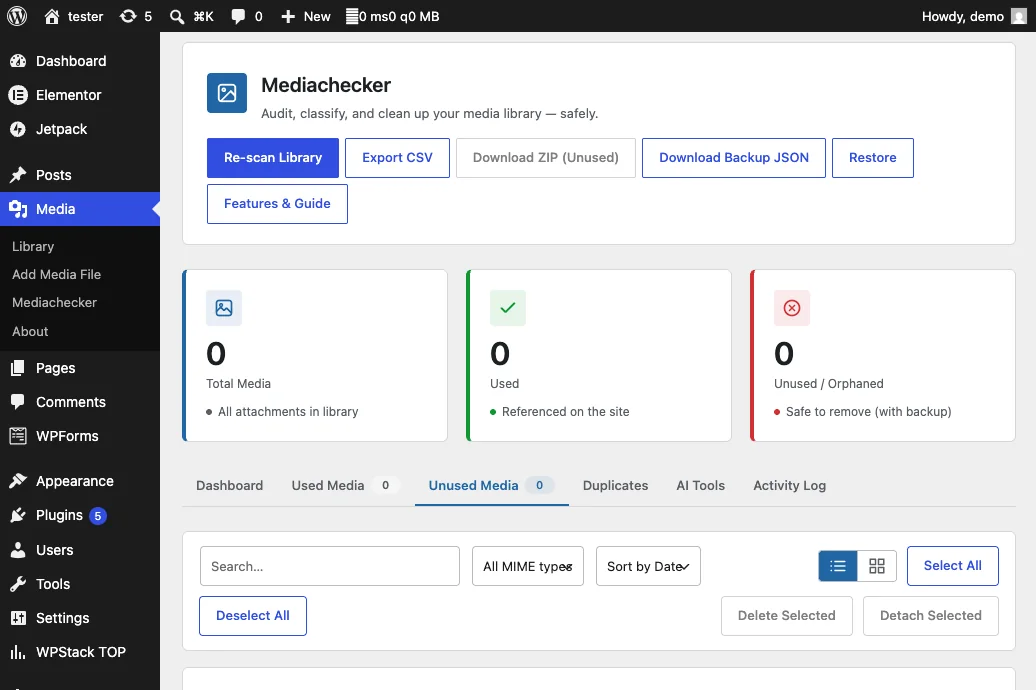
WordPress attachments include a post_parent value that may point to the post where the file was originally uploaded.
The Media Library uses this relationship when showing whether an item is attached or unattached.
That relationship is incomplete.
An image can be uploaded while editing one post and later used on several other pages. Its parent may remain the original post even if that post is deleted. A file uploaded directly through the Media Library may have no parent while still appearing across the website.
A file marked as unattached may be used in:
- Gutenberg content
- Elementor layouts
- Featured-image fields
- Theme options
- Custom fields
- WooCommerce products
- Menus
- Widgets
- Shortcodes
- CSS backgrounds
- Reusable blocks
- Header or footer templates
- Email templates
- External applications
The attachment-parent relationship describes upload history, not complete usage.
Do not use the “Unattached” filter as a deletion list.
Media References Are Stored in Different Formats
There is no universal reference format for WordPress media.
Different parts of a website may store the same image as:
- Attachment ID
- Absolute URL
- Relative URL
- Filename
- Serialized array
- JSON object
- CSS value
- HTML markup
- Shortcode attribute
- Custom-field value
- Block attribute
- Plugin-specific record
A featured image is commonly stored as an attachment ID. An image placed in classic editor content may be stored as HTML containing a URL. A page builder may save the ID and URL inside a large JSON structure. A theme may store a logo in an option.
A scanner that searches only attachment IDs will miss URL-based references. A tool that searches only URLs may miss IDs, filenames, transformed paths, and dynamically generated references.
Reliable detection requires several search methods.
Gutenberg Blocks Can Hide Media Relationships
The block editor stores page content as HTML comments and block markup inside the post content.
Depending on the block, media references may appear as:
- Attachment IDs
- URLs
- CSS classes
- JSON attributes
- Nested block data
Core image blocks are relatively predictable, but reusable blocks, synced patterns, custom blocks, and third-party block libraries may store media differently.
An image used inside a synced pattern may not appear directly in every page that displays it. Searching only individual page content can therefore miss the source relationship.
Dynamic blocks create another challenge. Their saved content may contain limited markup because the final HTML is generated at runtime.
A media audit should inspect:
- Posts
- Pages
- Custom post types
- Templates
- Template parts
- Patterns
- Reusable or synced blocks
- Widget blocks
- Navigation content
- Custom block storage
Page Builders Store Media in Proprietary Structures
Page builders often save layouts as structured metadata rather than ordinary post content.
Elementor, for example, may store widget settings, background images, responsive values, templates, global components, and nested containers in post metadata.
Other builders may use:
- Serialized PHP arrays
- JSON documents
- Shortcodes
- Custom database tables
- Generated CSS files
- Global template records
A simple search of post_content will not detect every builder reference.
Builder-generated CSS can also contain media URLs that are created from layout settings. Deleting the underlying attachment may leave a broken background without an obvious broken <img> element.
Large or outdated builder records can affect editor responsiveness as well as media audits. If complex pages are difficult to inspect, review WPStack’s guide on how to speed up the Elementor editor before attempting a large cleanup.
Featured Images Use Indirect References
WordPress usually stores a featured image in post metadata using the attachment ID.
The actual URL may not appear in the page content.
A URL search will miss this relationship unless the audit also checks featured-image metadata across:
- Posts
- Pages
- Products
- Custom post types
- Portfolio entries
- Events
- Listings
- Courses
- Membership content
Themes may use the same featured image in archive cards, social metadata, structured data, related-content sections, and responsive templates.
Deleting one attachment can therefore affect several locations even when it appears to belong to one post.
WooCommerce Creates Additional Media Dependencies
WooCommerce products can use images as:
- Primary product images
- Gallery images
- Variation images
- Category thumbnails
- Attribute swatches
- Downloadable files
- Review attachments
- Promotional banners
- Email content
Extensions can add further relationships through custom fields or their own database tables.
A product image may also appear in:
- Shop archives
- Search results
- Cart
- Checkout
- Account pages
- Product feeds
- Structured data
- Email notifications
- External marketplaces
- Mobile applications
Removing the file based only on Media Library attachment status can break sales workflows beyond the visible product page.
Theme Settings May Reference Media Globally
Themes commonly store media in the Customizer, theme-mod settings, options, block templates, or proprietary settings panels.
These references may control:
- Site logo
- Favicon
- Header image
- Footer background
- Default social image
- Mobile logo
- Login logo
- Placeholder image
- 404-page illustration
- Blog archive banner
- Default product image
A globally used image may appear on hundreds of pages while having no attachment parent.
Theme settings should be included in every media-usage audit, particularly before switching or deleting themes. An inactive theme may also preserve assets that the business wants to reuse later.
Custom Fields Expand the Search Surface
Custom Field Suite, Advanced Custom Fields, Meta Box, Pods, and custom plugins can save images as IDs, URLs, arrays, or serialized values.
A field may return an attachment ID to one template and an array containing several image properties to another.
Media can appear inside:
- Image fields
- Gallery fields
- Repeater rows
- Flexible-content layouts
- Relationship fields
- Options pages
- Taxonomy metadata
- User metadata
- Custom post metadata
A cleanup tool must understand both the storage structure and the field configuration. Searching only visible post content will miss these references.
CSS and JavaScript Can Reference Files Directly
Developers sometimes reference uploads directly inside:
- Theme stylesheets
- Custom CSS
- Generated CSS
- Inline styles
- JavaScript configuration
- Template files
- Custom plugins
- Must-use plugins
A CSS background may use a hardcoded /wp-content/uploads/ path without any attachment ID.
Responsive designs can reference different images at different screen widths. A desktop-only visual inspection may not detect a mobile background that would break after deletion.
The audit should search source files, database-stored CSS, generated builder CSS, and inline styles where practical.
Generated files should be traced back to their source settings. Editing generated CSS directly does not fix the underlying reference.
Responsive Images Create Multiple Physical Files
When an image is uploaded, WordPress can create multiple intermediate sizes and include them in attachment metadata.
Frontend markup may use:
- Original image
- Thumbnail
- Medium size
- Large size
- Custom theme size
- WebP or AVIF derivative
- Cropped version
- High-density version
The browser may select a file from srcset based on screen width and pixel density. A variation that appears unused during one test may be delivered on another device.
Do not treat each resized file as an independent attachment. Deleting individual files directly from the uploads directory can leave database metadata pointing to files that no longer exist.
WordPress provides a dedicated wp_delete_attachment_files() function for removing files associated with an attachment. Normal cleanup should use WordPress attachment workflows rather than random filesystem deletion.
CDN and Image-Optimization Services Add Another Layer
Content delivery networks and image-optimization services may rewrite media URLs.
The URL delivered to a visitor may differ from the original WordPress upload path.
Examples include:
- CDN domain substitution
- Query-based resizing
- WebP or AVIF conversion
- Edge transformations
- Cached remote copies
- Signed URLs
- Lazy-loading placeholders
A frontend crawl may find only the transformed URL. The source attachment can still exist in WordPress under another domain or path.
Deleting an origin file may not create an immediate visible failure because the CDN continues serving a cached copy. The broken state may appear later when the cache expires.
After media cleanup, purge or selectively invalidate the relevant CDN and optimization caches before validation.
External Systems May Depend on WordPress Media
A file can be used outside the WordPress website.
External consumers may include:
- Mobile applications
- Headless frontends
- Product feeds
- Social scheduling tools
- Email campaigns
- CRM records
- Documentation
- Partner websites
- Marketplace listings
- Public API clients
- Download links sent to customers
These systems may store only the public media URL. No reference appears inside the WordPress database.
A media scanner limited to one website cannot prove that an externally accessible file is unused.
Before deleting public assets, review analytics, access logs, integration documentation, marketing workflows, and API consumers.
Files intentionally used as stable public downloads deserve a documented retention policy.
Cached Pages Can Hide Broken References
Page caches, object caches, CDN caches, and browser caches can show an image after the source reference or original file has changed.
This creates two opposite problems:
- A file may appear to be in use only because old cached HTML still references it.
- A deleted file may appear to work because the CDN still has a copy.
Perform media audits against both current database content and freshly generated pages.
After a controlled deletion test:
- Clear relevant page caches
- Purge affected CDN entries
- Regenerate page-builder CSS
- Clear object caches where necessary
- Test in a private browser session
- Check several device sizes
Do not clear every production cache before a rollback plan is ready. Cache invalidation can expose broken references immediately.
File Copies May Exist Without Attachment Records
Not every file in wp-content/uploads has a valid Media Library attachment.
Orphaned physical files may come from:
- Failed uploads
- Manual FTP transfers
- Migrations
- Restored backups
- Deleted attachment records
- Image editors
- Optimization plugins
- Regenerated thumbnails
- Import tools
- Temporary processing
- Custom scripts
The reverse can also happen: an attachment record may exist while its physical file is missing.
A complete audit should compare:
- Attachment records
- Attachment metadata
- Original files
- Generated sizes
- Backup sizes
- Filesystem contents
- Offloaded storage
- CDN origin records
A database-only audit and a filesystem-only audit each provide incomplete evidence.
Filename Matching Can Produce False Results
Searching for a filename such as hero.jpg may appear straightforward, but WordPress can alter filenames during upload.
The website may contain:
hero.jpghero-1.jpghero-300x200.jpghero-scaled.jpghero-edited.jpghero.webphero.avif
Different folders can also contain files with the same name.
A filename search may connect the wrong physical file to a reference or miss a generated derivative.
Use attachment IDs, full normalized paths, metadata, and checksums where appropriate. Do not make deletion decisions using basename matches alone.
Security Plugins and Protected Media Need Special Care
Some plugins protect downloads or rewrite media access through PHP, signed links, membership rules, or private storage.
A protected file may not appear in an ordinary public crawl.
Deleting its attachment could affect:
- Paid downloads
- Membership resources
- Private invoices
- Course materials
- Customer documents
- Secure form uploads
- Restricted media galleries
Before inspecting or changing protected assets, review the WordPress plugin security checklist. Media cleanup must preserve access controls, ownership rules, privacy requirements, and audit evidence.
Do not make protected files public temporarily just to test whether they are used.
Media Metadata Can Affect Autoload and Database Performance
Attachment metadata is generally stored as post metadata rather than autoloaded options. However, media plugins may save global indexes, scan results, optimization settings, and cached reports in the options table.
A media-cleanup scan can create a large stored result that loads on every request if the plugin uses autoloading incorrectly.
If a media or optimization plugin increases server response time, review how autoloaded options affect WordPress TTFB. The problem may be the scanner’s stored index rather than the number of attachment records.
Large scan results, logs, and file maps should usually load only when required and should have a cleanup or expiration strategy.
Build a Reference Map Before Deleting Anything
A reliable media audit starts by creating a reference map.
For every candidate attachment, search:
- Post and page content
- Featured-image metadata
- Custom post types
- Product and variation data
- Page-builder metadata
- Gutenberg templates and patterns
- Theme settings
- Plugin options
- Custom fields
- Taxonomy metadata
- User metadata
- Widgets and menus
- CSS and JavaScript
- Custom database tables
- Filesystem references
- External integrations
- Access logs where available
Record how each reference was found.
Use confidence categories:
Confirmed in use: At least one active reference is verified.
Probably in use: A reference exists, but its rendering path is unclear.
Probably unused: No active reference was found, but external use cannot be excluded.
Confirmed unused: Ownership and dependencies were reviewed, and the file is approved for removal.
Automated scans should produce candidates, not final deletion decisions.
Crawl the Rendered Website
Database searches should be combined with a crawl of the rendered website.
A crawler can collect:
- Image URLs
srcsetvalues- CSS backgrounds
- PDF links
- Video sources
- Open Graph images
- Structured-data images
- Lazy-loaded attributes
- Redirected media URLs
Crawl:
- Public pages
- Archives
- Products
- Search results
- Important landing pages
- Logged-in workflows where permitted
- Mobile and desktop layouts
- Alternate languages
- Paginated sections
A crawl still cannot detect every conditional, personalized, private, or external reference. It adds another evidence source rather than providing absolute proof.
Review Recent Access Carefully
Server or CDN logs can show whether a file has been requested recently.
This is useful but not conclusive.
A legitimate file may receive no requests during the review period because it belongs to:
- A seasonal campaign
- An old customer download
- A rarely visited support article
- A private course
- A low-traffic language version
- An annual report
- An email sequence that has not run recently
Bots may also request files that are no longer linked.
Use access history together with ownership, content, and business context.
Quarantine Media Before Permanent Deletion
Do not permanently delete hundreds of candidate files immediately.
Use a quarantine process:
- Create a current database and uploads backup.
- Confirm the backup can be restored.
- Export the candidate list.
- Record attachment IDs and file paths.
- Move candidates to Media Trash or a controlled quarantine state.
- Keep the originals recoverable.
- Clear relevant caches.
- Test the website.
- Monitor errors and support reports.
- Permanently remove files only after the review period.
If Media Trash is not enabled, implement a reversible workflow appropriate for the hosting environment.
The quarantine period should reflect website activity. A busy publication may reveal problems within days. A membership or seasonal website may need a much longer observation window.
Test High-Risk Areas Manually
Automated screenshot comparison and link checking can help, but some areas require manual review.
Test:
- Homepage
- Header and footer
- Primary landing pages
- Product pages
- Product galleries
- Cart and checkout
- Account areas
- Mobile layouts
- Popups
- Forms
- Email templates
- Download workflows
- Multilingual pages
- Structured-data output
- Social sharing previews
- Page-builder templates
- Logged-in membership content
Check browser developer tools for 404 responses, blocked requests, mixed-content warnings, and failed background images.
A website can return a successful page status while several media assets fail.
Make the Cleanup Process Production-Ready
Media cleanup is not only a storage task. It is a release and data-management process.
A reliable workflow should include:
- Defined ownership
- Documented scan scope
- Approved exclusion rules
- Backup verification
- Reversible quarantine
- Batch limits
- Audit logs
- Permission checks
- Failure recovery
- Cache handling
- Visual validation
- Final approval
- Post-cleanup monitoring
These safeguards are part of what makes a WordPress plugin production-ready, especially when the plugin can delete files or modify attachment relationships.
A cleanup tool that finds many candidates but cannot explain, preview, quarantine, restore, or log its decisions is not safe for production use.
Choose Between a Free Tool and a Custom Workflow
A free media-cleanup plugin may be suitable for a small, conventional website using core WordPress content and a standard theme.
A custom audit may be necessary when the website uses:
- Multiple page builders
- WooCommerce extensions
- Custom fields
- Headless frontends
- External APIs
- Offloaded media
- Membership downloads
- Custom database tables
- Multisite
- Large media libraries
- Compliance-driven retention
- Business-critical documents
Before selecting a cleanup solution, compare the limitations of a free WordPress plugin versus custom development.
The right choice depends on the number of storage systems, the cost of a false deletion, the required evidence, and whether restoration must be automated.
Prevent Media Waste From Returning
Cleanup provides temporary relief unless the upload workflow also improves.
Define policies for:
- Approved file formats
- Maximum image dimensions
- Filename conventions
- Duplicate checking
- Image ownership
- Retention periods
- Generated image sizes
- Campaign asset expiration
- External download management
- Offloaded media
- Plugin uninstall behaviour
Review registered image sizes and remove unnecessary custom sizes carefully. Changing sizes affects new uploads but does not automatically remove or regenerate existing derivatives.
Ask plugin developers to document how their products create, reference, transform, and delete media.
Schedule periodic audits instead of waiting until storage becomes an emergency.
Media Audit Checklist
Create a complete backup. Inventory attachment records and physical files. Identify generated sizes. Search post content and metadata. Review Gutenberg patterns and templates. Inspect page-builder data. Check featured images. Review WooCommerce media. Search theme settings and custom fields. Inspect CSS and JavaScript. Check custom tables. Review protected downloads. Map CDN and offloaded storage. Crawl rendered pages. Review access logs. Classify candidates by confidence. Quarantine before deletion. Clear relevant caches. Test important workflows. Monitor 404 responses. Permanently delete only after approval.
Clean Your WordPress Media Library Without Breaking Live Pages
Contact WPStack for a controlled WordPress media-usage audit and cleanup. We can trace attachment IDs, URLs, filenames, page-builder records, custom fields, WooCommerce data, theme settings, generated files, and external dependencies before any media is removed.
Our WordPress plugin and performance engineering services help businesses reduce unnecessary storage while protecting live designs, product galleries, downloads, structured data, integrations, and critical customer workflows.
The safest media-cleanup process does not ask only, “Can we find a reference?” It also asks, “What evidence would make deletion safe?”
Frequently Asked Questions
No. It means the attachment has no current parent-post relationship. The file may still appear in page content, a builder layout, theme settings, custom fields, WooCommerce, CSS, or an external system.
No tool can guarantee complete detection across every theme, plugin, custom field, external application, and storage system. Automated tools should create a review list rather than permanently delete everything they flag.
Permanent WordPress attachment deletion can remove the original file and associated generated sizes recorded in its metadata. This is why files should be deleted through supported WordPress workflows.
Usually not. Direct filesystem deletion can leave attachment records and metadata pointing to missing files. It can also remove generated files that belong to an active attachment.
A page cache, CDN, browser cache, or optimization service may still hold a copy. Purge the relevant caches and test again before assuming the original file remains available.

Aditya Bhimrajka is a technology entrepreneur, product strategist, and software solutions expert with over a decade of experience building scalable web and mobile applications. His expertise spans SaaS, AI, cloud technologies, custom software development, and digital transformation. Passionate about solving real-world business challenges through technology, Aditya shares practical insights on WordPress, plugins, software development, startup growth, product strategy, and emerging technologies. At WPStack, he writes actionable, experience-driven content that helps developers, businesses, and website owners build secure, high-performing, and future-ready WordPress solutions.
How Autoloaded Options Affect WordPress TTFB | WPStack
July 29, 2026 at 8:50 am
“ […] why unused WordPress media is hard to detect before removing options created by media-management […] “
WordPress Plugin Maintenance Checklist | WPStack
July 29, 2026 at 11:09 am
“ […] Before adding automatic deletion to a maintenance release, review why unused WordPress media is harder to detect. […] “